Meshes
Note
A mesh in Capytaine is merely a set of independent faces (triangles or quadrangles). Connectivities are not required for the resolution. Having a mesh that is not watertight, with small gaps between the faces or a few missing faces, does not lead to qualitatively different results.
Note
Besides loading existing mesh files, Capytaine includes some features to generate meshes for simple geometrical shapes, to clip a mesh at the free surface and generate a lid. The implementation of these features is only the minimum necessary to test the code and run simple cases. You might get slightly better results by using a more advanced meshing software to fine-tune the mesh, for instance by using cosine spacing near the edges or near the free surface, or by generating a full lid of the waterplane.
Naming
Meshes in Capytaine have a name attribute.
It is optional and is mostly used for clearer logging and outputs.
A name optional argument can be provided to all methods below to initialize
a mesh or transform a mesh to set the name of the new mesh.
Mesh initialization
Importing from file
To load an existing mesh file, use the following syntax:
mesh = cpt.load_mesh('path/to/mesh.dat', file_format='nemoh')
The above example uses Nemoh’s mesh format, which is one of the built-in hydrodynamic file formats that can be read by Capytaine.
Mesh file format |
Keywords for |
Reference |
|---|---|---|
Nemoh |
|
|
WAMIT |
|
|
HAMS |
|
|
Hydrostar |
|
Hydrostar manual |
For the four file format above, the reflection symmetries (see Mesh symmetries) are recognized and a symmetric mesh will automatically be generated by load_mesh.
Except for symmetries, all other metadata are ignored (such as the gravity acceleration value that can be set in gdf files).
If no file_format is given, the code will try to infer it from the file extension:
mesh = cpt.load_mesh('path/to/mesh.gdf')
Besides accepting a path to a file, the function load_mesh accepts an opened file, as in the following example:
with open('path/to/mesh.pnl', 'r') as f:
    mesh = cpt.load_mesh(f, file_format='hams')
In this case, the file_format must be explicitly provided.
This is especially useful when combined with Python built-in loaders for compressed files formats such as gz, xz or zstd files:
import gzip
with gzip.open('path/to/mesh.dat.gz', 'rt') as f:
    mesh = cpt.load_mesh(f, file_format='nemoh')
Note
In Capytaine, all 3D coordinates are expressed in the same global reference
frame such that the rest free surface is horizontal at altitude \(0\).
If the mesh file has been created with coordinates in a difference reference
frame (e.g. using the center of mass as reference), you can easily adjust it
after loading using the translated()
method as seen below.
Importing through external library
Capytaine relies on external libraries to load meshes for a lot more general purpose file formats. For instance, assuming the Python library meshio has been installed, the following command will transparently open a GMSH file:
mesh = cpt.load_mesh('path/to/mesh.msh', file_format='gmsh')
# No need to explicitly import meshio, as long as it has been installed.
The table below list a few selected file formats supported through external libraries.
Mesh file format |
Keywords for |
Install one of these Python libraries |
|---|---|---|
GMSH (v2 and v4) |
|
|
STL |
|
|
VTK |
|
This works with opened file handles, including compressed files, as in the previous section:
import gzip
with gzip.open('path/to/mesh.stl.gz', 'rb') as f:
    mesh = cpt.load_mesh(f, file_format='stl')
You might need to be careful whether the file format is binary (use 'rb'
option to open) or textual (use 'rt' option to open).
Alternatively, load_mesh also accepts a Python object from these external
libraries:
import meshio
meshio_mesh = meshio.read('path/to/file.stl', file_format='stl')
mesh = cpt.load_mesh(meshio_mesh)  # Converts meshio mesh object to Capytaine mesh object
This feature allows to use pygmsh to generate the mesh, since this library returns mesh in the same format as meshio. Below is an example of a mesh generation with pygmsh (which also needs to be installed independently):
import pygmsh
offset = 1e-2
T1 = 0.16
T2 = 0.37
r1 = 0.88
r2 = 0.35
with pygmsh.occ.Geometry() as geom:
    geom.characteristic_length_min = 0.05
    geom.characteristic_length_max = 0.1
    cyl = geom.add_cylinder([0, 0, 0], [0, 0, -T1],  r1)
    cone = geom.add_cone([0, 0, -T1], [0, 0, -T2], r1, r2)
    geom.translate(cyl, [0, 0, offset])
    geom.translate(cone, [0, 0, offset])
    geom.boolean_union([cyl, cone])
    gmsh_mesh = geom.generate_mesh(dim=2)
mesh = cpt.load_mesh(gmsh_mesh)
Predefined simple shapes
Capytaine include mesh generators for a few simple shapes. They are mostly
meant for teaching (they are extensively used in the examples of this
documentation) as well as for testing.
The most useful ones are
mesh_sphere(),
mesh_vertical_cylinder(),
mesh_horizontal_cylinder(),
mesh_parallelepiped().
Some applications may also make use of flat shapes
mesh_disk() and
mesh_rectangle().
Refer to their documentation for details about the parameters they accepts.
Since version 2.1, their resolution can be set by the faces_max_radius
parameter which specifies the maximal size of a face in the mesh.
Note
There are several ways to measure the size of a face and the resolution of a mesh. In Capytaine, the size of faces is usually quantified with the radius of the face, that is the maximal distance between the center of the face and its vertices. The resolution of a mesh is estimated as the maximal radius among all the faces in the mesh, that is the radius of the biggest face.
Creating from scratch
Alternatively, a mesh can be defined by giving a list of vertices and faces:
mesh = cpt.Mesh(vertices=..., faces=..., name="my_mesh")
The vertices are expected to be provided as a Numpy array of floats with shape (nb_vertices, 3).
The faces are provided as a Numpy array of ints with shape (nb_faces, 4), such that the four integers on a line are the indices of the vertices composing that face:
v = np.array([[0.0, 0.0, -1.0],
              [1.0, 0.0, -1.0],
              [1.0, 1.0, -1.0],
              [0.0, 1.0, -1.0]])
f = np.array([[0, 1, 2, 3]])
single_face_mesh = cpt.Mesh(vertices=v, faces=f)
The ordering of the vertices define the direction of the normal vector, using normal right rotation. In other words, the normal vector is towards you if you see the vertices as being in counterclockwise order. In the above code sample, the normal vector is going up.
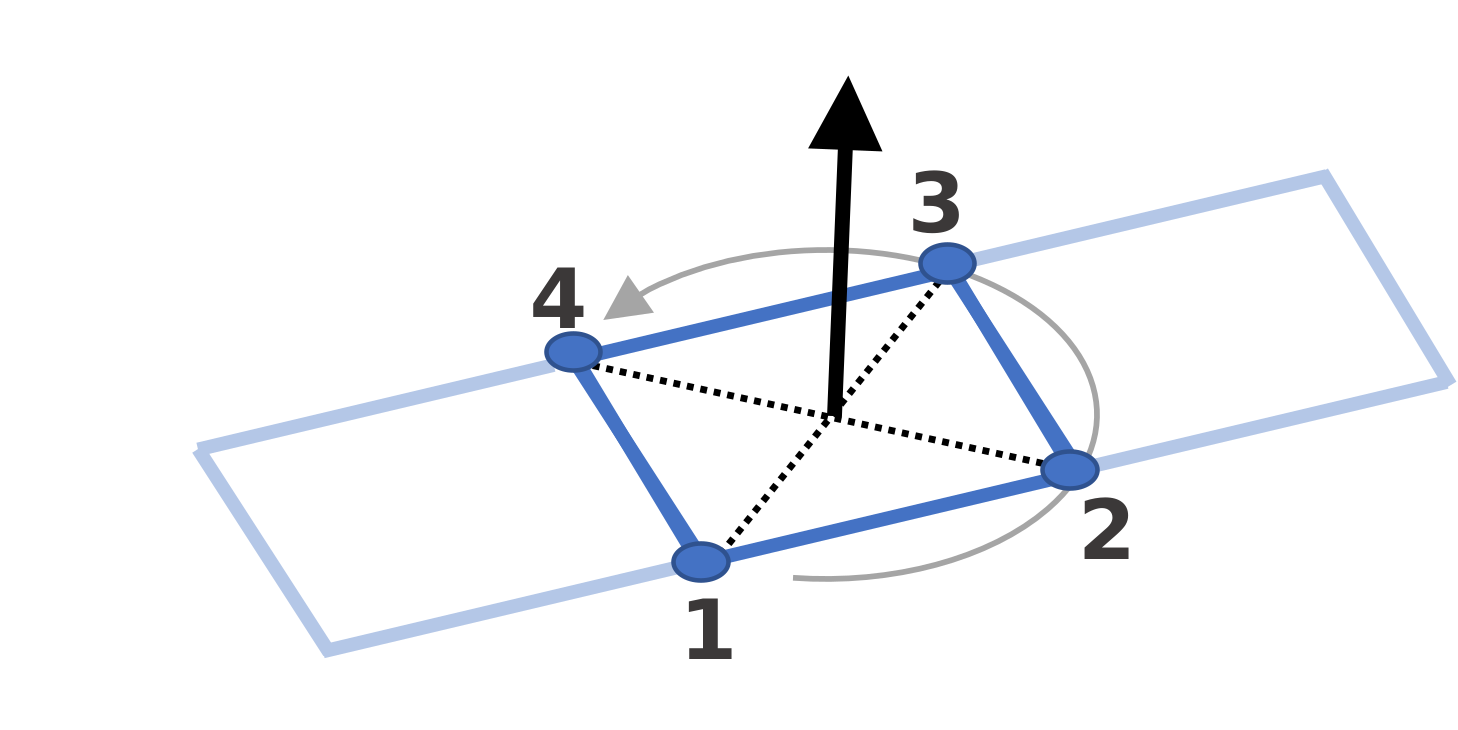
Fig. 1 The ordering of the vertices in a panel defines the direction of the normal vector.
Triangular faces are supported as quadrilateral faces with the same vertex repeated twice:
single_triangle_mesh = cpt.Mesh(vertices=v, faces=np.array([[0, 1, 2, 2]]))
Display
Use the show method to display the mesh in 3D using VTK (if installed)
with the show():
mesh.show()
or with Matplotlib (if installed) with
show_matplotlib():
mesh.show_matplotlib()
Geometric transformations
Several functions are available to transform existing meshes.
Below is a list of most of the available methods. All of them can be applied to both meshes or to floating bodies, in which case the degrees of freedom will also be transformed:
# TRANSLATIONS
mesh.translated_x(10.0)
mesh.translated_y(10.0)
mesh.translated_z(10.0)
mesh.translated([10.0, 5.0, 2.0])

# Translation such that point_a would become equal to point_b
mesh.translated_point_to_point(point_a=[5, 6, 7], point_b=[4, 3, 2])

# ROTATIONS
mesh.rotated_x(3.14/5)  # Rotation of pi/5 around the Ox axis
mesh.rotated_y(3.14/5)  # Rotation of pi/5 around the Oy axis
mesh.rotated_z(3.14/5)  # Rotation of pi/5 around the Oz axis

# Rotation of pi/5 around an arbitrary axis.
from capytaine import Axis
my_axis = Axis(vector=[1, 1, 1], point=[3, 4, 5])
mesh.rotated(axis=my_axis, angle=3.14/5)

# Rotation around a point such that vec1 becomes aligned with vec2
mesh.rotated_around_center_to_align_vector(
    center=(0, 0, 0),
    vec1=(1, 4, 7),
    vec2=(9, 2, 1)
)

# REFLECTIONS
from capytaine import Plane
mesh.mirrored(Plane(normal=[1, 2, 1], point=[0, 4, 5]))
All the above methods can also be applied to Plane
and Axis objects.
Meshes can also be merged together with the + operator:
larger_mesh = mesh_1 + mesh_2
Finally, meshes can be clipped with a Plane.
The plane is defined by a point belonging to it and a normal vector:
xOy_Plane = Plane(point=(0, 0, 0), normal=(0, 0, 1))
clipped_mesh = mesh.clipped(xOy_Plane)
Beware that the orientation of the normal vector of the Plane will
determine which part of the mesh will be returned:
higher_part = mesh.clipped(Plane(point=(0, 0, 0), normal=(0, 0, -1)))
lower_part = mesh.clipped(Plane(point=(0, 0, 0), normal=(0, 0, 1)))
# mesh = lower_part + higher_part
The method immersed_part() will clip the body with respect to two
horizontal planes at \(z=0\) and \(z=-h\):
clipped_body = mesh.immersed_part(water_depth=10)
Note
Most transformation methods exist in two versions:
one, named as a infinitive verb (translate, rotate, clip, keep_immersed_part, …), is an in-place transformation;
the other, named as a past participle (translated, rotated, clipped, immersed_part, …), is the same transformation but returning a new object.
In most cases, performance is not significant and the method returning a new object should be preferred. In-place transformation are currently kept for backward compatibility, but they make the code significantly more complicated and their removal might be considered in the future.
Extracting or generating a lid
If you loaded a mesh file already containing a lid on the \(z=0\) plane,
the hull and the lid can be split with the
extract_lid() method:
full_mesh = cpt.load_mesh(...)
hull_mesh, lid_mesh = full_mesh.extract_lid()
If your mesh does not have a lid, you can generate a lid using
generate_lid() as follows:
lid_mesh = hull_mesh.generate_lid()
The mesh is generated on the free surface by default, unless the z optional argument is passed to generate_lid().
The method generate_lid() also accepts
an optional argument faces_max_radius to set the resolution of the lid.
By default, the mean resolution of the hull mesh is used.
See Lid mesh for details on how to assign a lid mesh when defining a floating body.
Defining an integration quadrature
Note
Quadratures are an advanced feature meant to experiment with numerical schemes. The best compromise between precision and performance is often not to bother with it and keep the default integration scheme.
During the resolution of the BEM problem, the Green function has to be integrated on each panel of the mesh. Parts of the Green function (such as the \(1/r\) Rankine terms) are integrated using an exact analytical expression for the integral. Other parts of the Green function rely on numerical integration. By default, this numerical integration is done by taking the value at the center of the panel and multiplying by its area. For a more accurate integration, an higher order quadrature can be defined.
Setting a quadrature for a mesh can be done with the with_quadrature method:
mesh = mesh.with_quadrature("Gauss-Legendre 2")
Currently, the only supported methods are None, that is the default 1-point
quadrature, and "Gauss-Legendre 2".
The quadrature data can then be accessed at:
mesh.quadrature_points
and will be used automatically when needed.
Warning
Quadratures schemes have been designed with quadrilateral panels. They work on triangular panels, but might not be as optimal then.